


From the big picture to today’s work.
Learn how RessursAgent fits together. Find the right plan, follow practical guides and see the workflow in screenshots and short videos.
Start with your task.
Find the right plan for you, your project or the whole organization.
Find the guide you need.
Search for your task and follow a relevant guide.
See it. Try it yourself.
Images, short videos and practical steps show you how to proceed.
Stuck? We can help.
Tell us which plan you use, what you are trying to do and what happens.
Choose a step or follow the story. Find the guides below.
Project management at every level.
See each person’s work, manage projects and plan people and equipment across them. Everything connects.
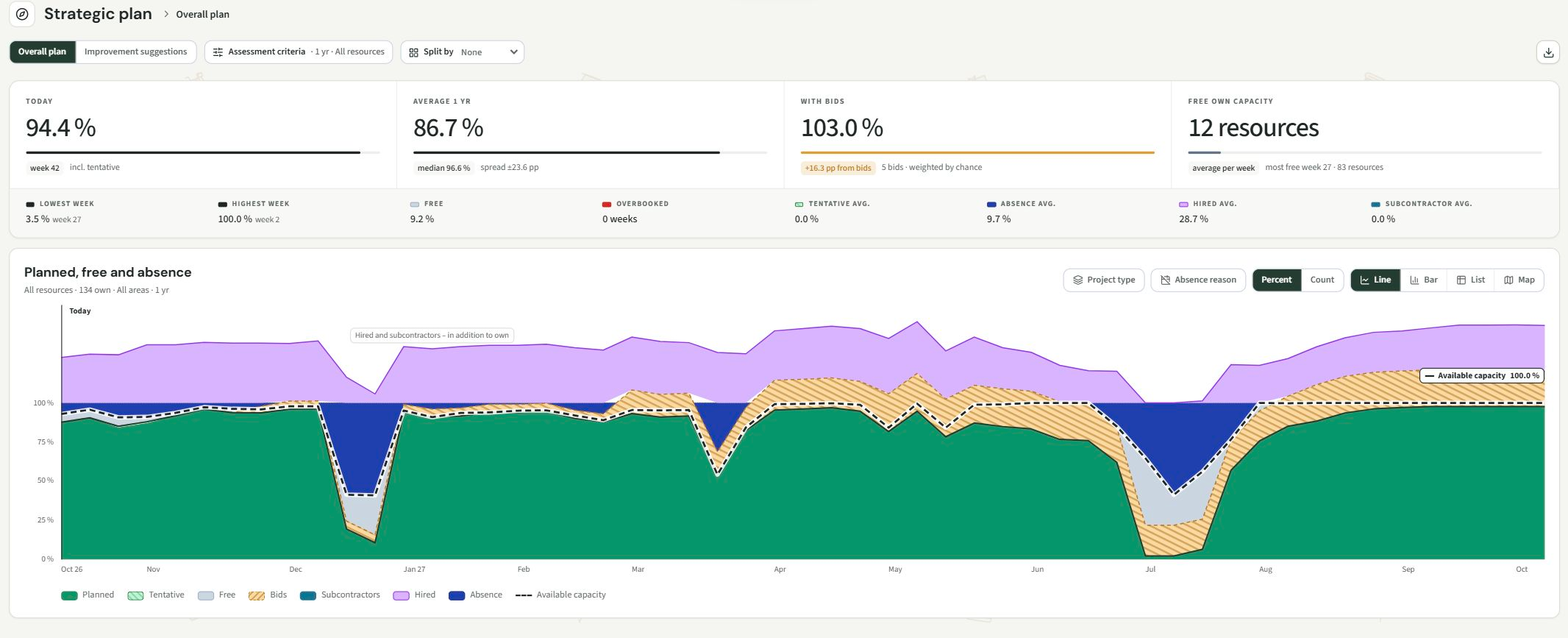
Strategic plan
View the entire portfolio over the medium to long term. Find improvement opportunities, assess tender risk and explore estimated cost improvements through financial analysis. Estimates depend on your pricing data and assumptions.
02Tactical levelMaster plan
See all resources across all projects in the short to medium term. Balance demand, skills and capacity.
03Operational levelProject plan
Manage delivery within one project through activities, teams, milestones and dependencies.
04IndividualMy plan
See your work, changes, skills and profile. For the crew – direct employees, hired personnel and subcontractors.
Access depends on your role and selected organisation. Calculated savings are estimates, not guarantees.
What would you like to do?
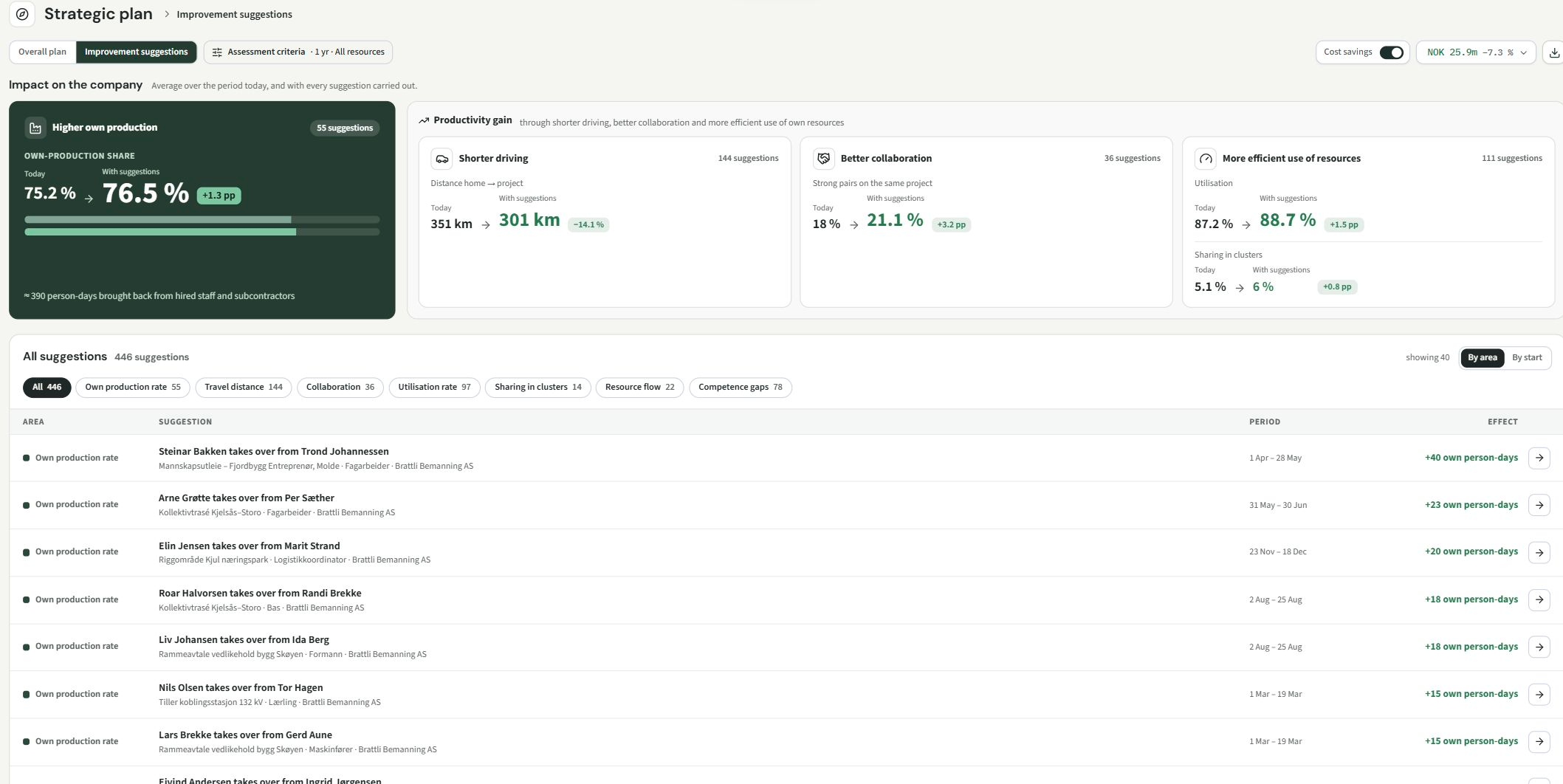
01Read the strategic planSee the entire portfolio in the medium to long term. Assess utilisation, improvement suggestions, bids and estimated financial effects.
- Open Plans → Strategic plan. Choose the horizon, filters and key figures to display.
- Review Right resource, Right place and Right time. Open a measure such as Sharing in clusters to examine suggestions and criteria.
- Review assumptions before planning an action. Enable Financial analysis to see estimated amounts.
 View full size ↗
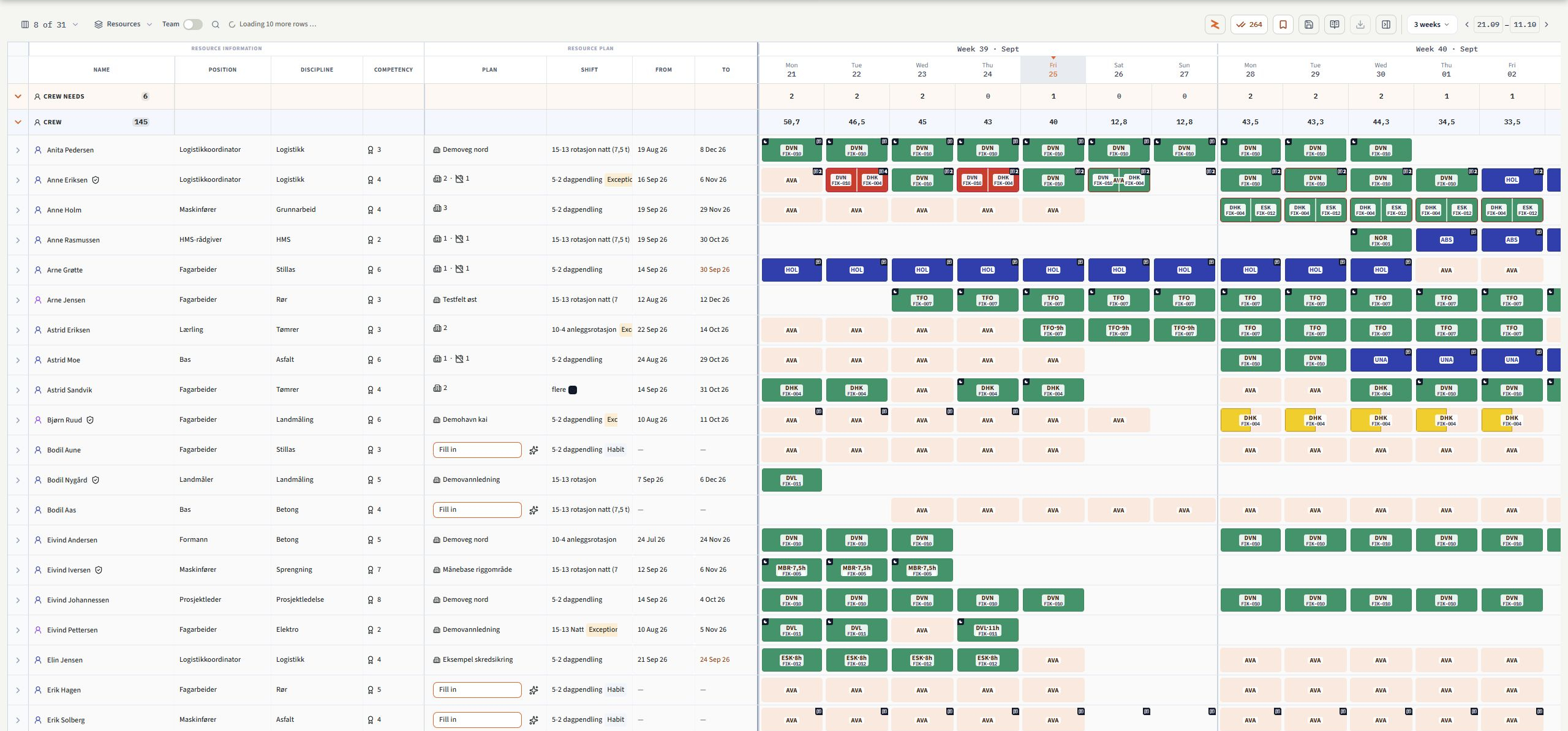
02Plan resources across projectsSee all resources across all projects in the short to medium term. Balance demand, skills and capacity.
- Open Plans → Master plan. Choose the period and narrow the view with search, filters and grouping.
- Use Columns to show relevant fields. Review people, equipment, uncovered needs and assignments alongside dates.
- Open a need or assignment. Check candidates, competencies, dates and capacity before saving.
 View full size ↗
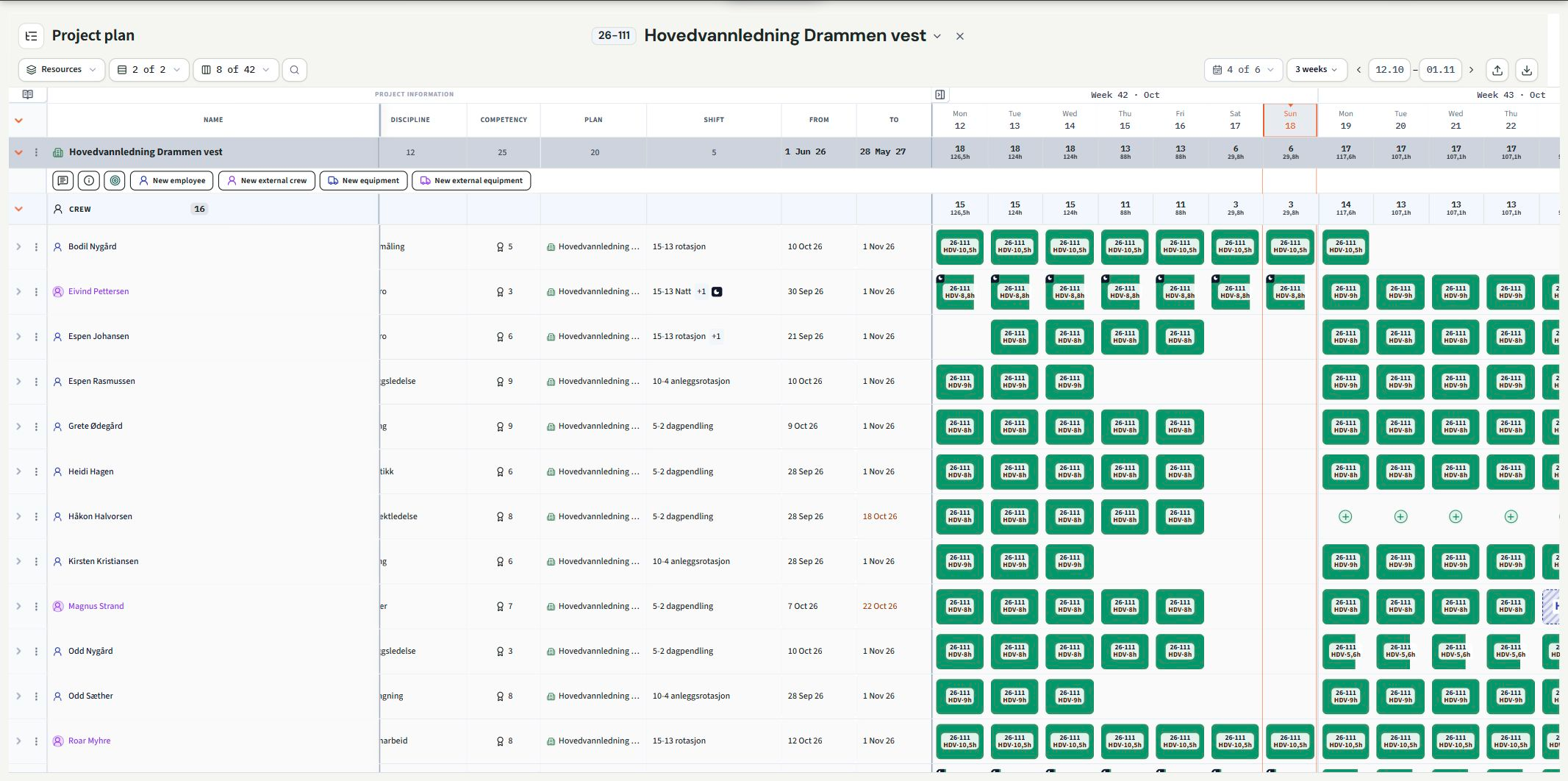
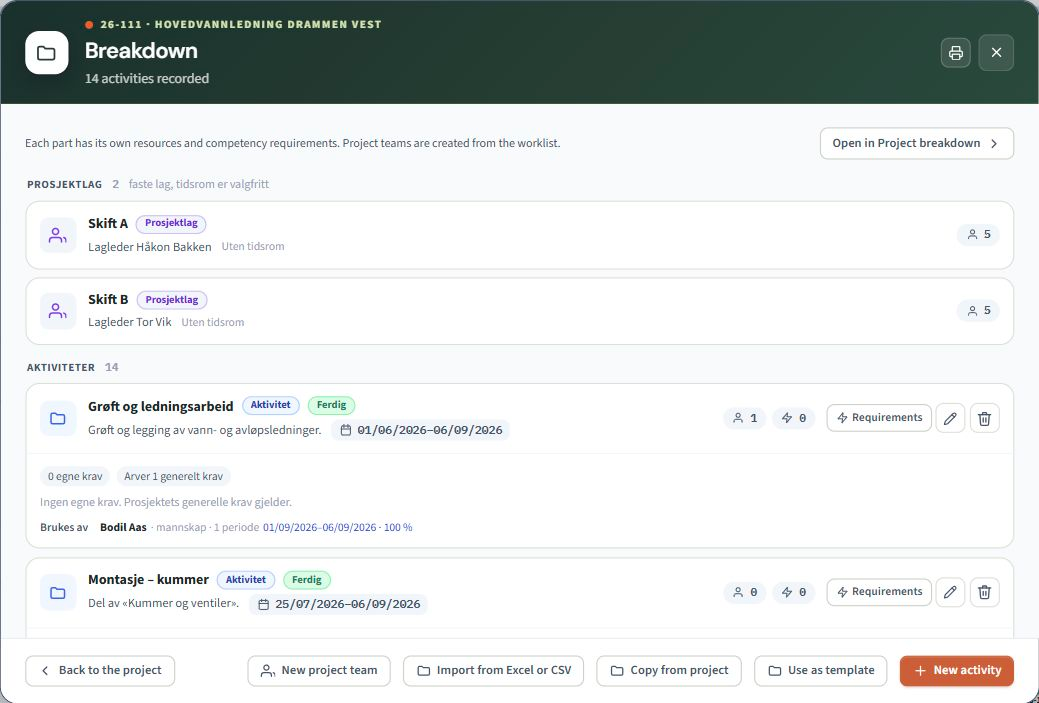
03Manage project deliveryResources, activities and teams for one project.
- Open Plans → Project plan and choose your project.
- Use View by to switch between Resources, Activities and Project teams. Narrow the view with the activity selector.
- Use Activity, Team, Milestone and Dependency to structure delivery. Place needs and resources in the right part of the project and check dates and sequence.
 View full size ↗
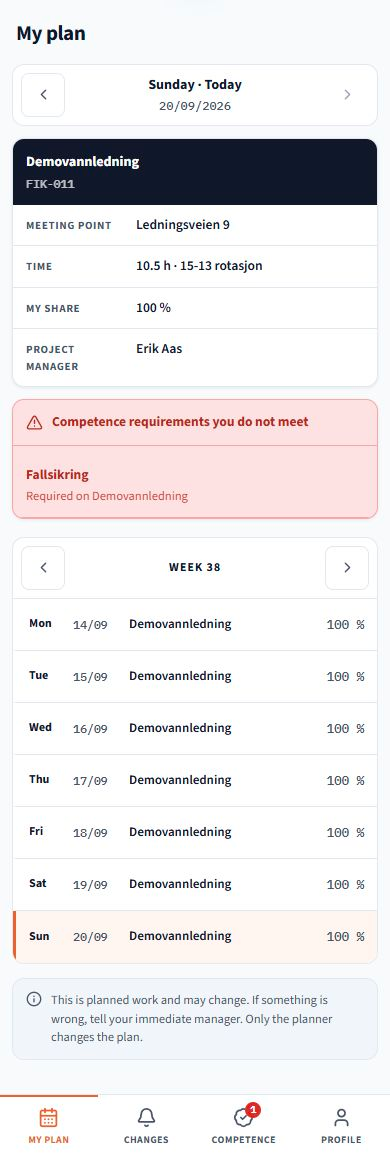
04Use My plan on mobileYour work and the information relevant to you.
- Open My plan with an account linked to an employee resource. Choose the date or period.
- Open My changes for updates and Competencies for qualifications and documentation.
- Open Profile for personal details and available options. Follow project links when you need more information about the job.
 View full size ↗
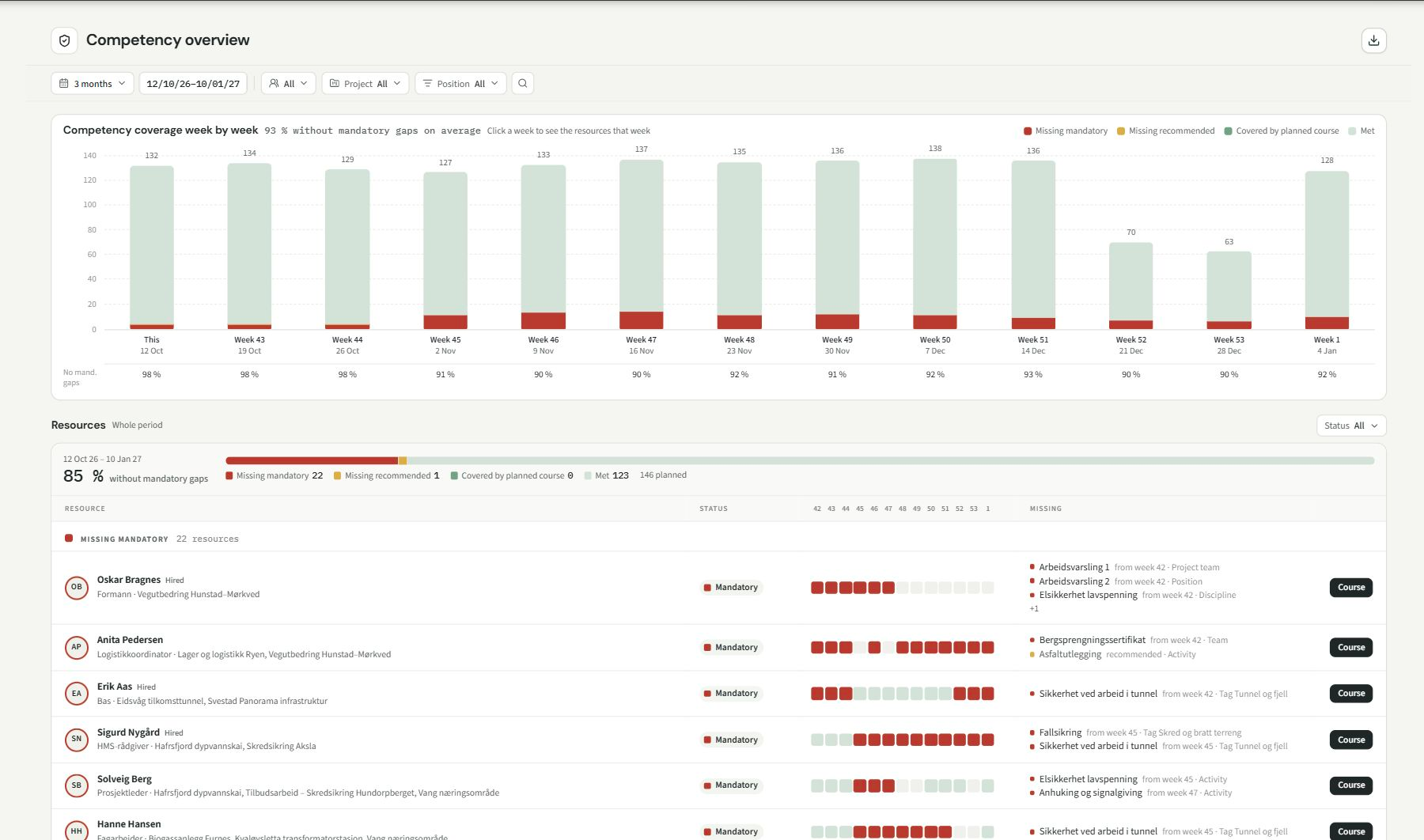
05Use the overviewsCVs, skills and costs.
- Open Content → Overview and choose CVs, Competence or Cost overview.
- Use CVs for experience, Competence for requirements and qualifications, and Cost overview for planned costs.
- Choose the period and filters. Check the underlying data before acting on findings.
 View full size ↗
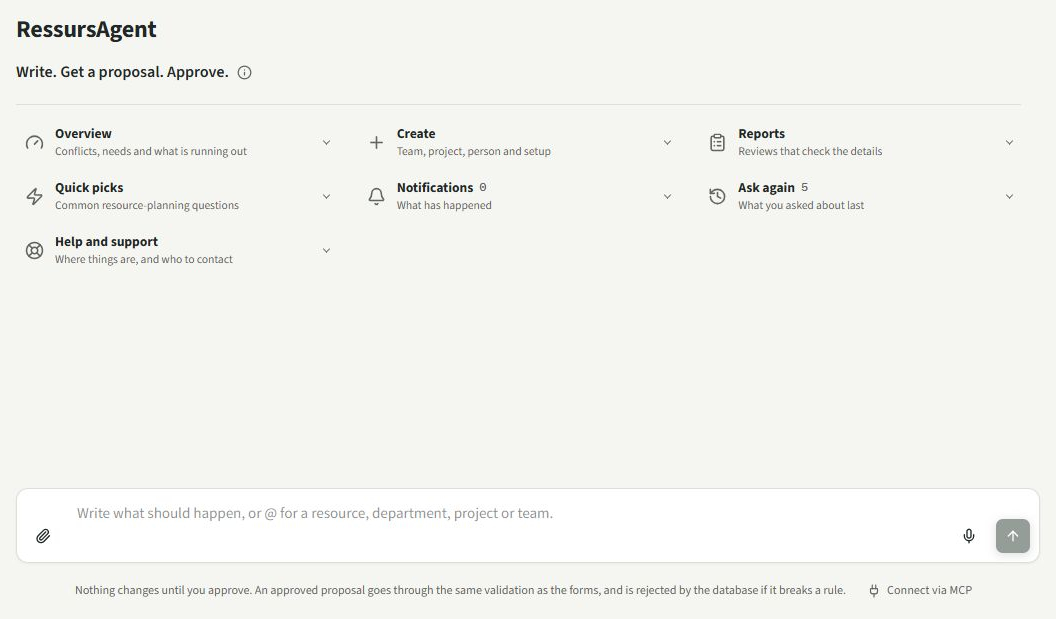
06Work with the AgentAsk, review and approve changes.
- Open RessursAgent from the plan or user menu. Describe your question or requested change.
- Use @-references and relevant attachments for context. Ask, for example, for available capacity with the right competencies.
- Read the answer and any proposed changes. Check the details before approving and executing or discarding.
 View full size ↗
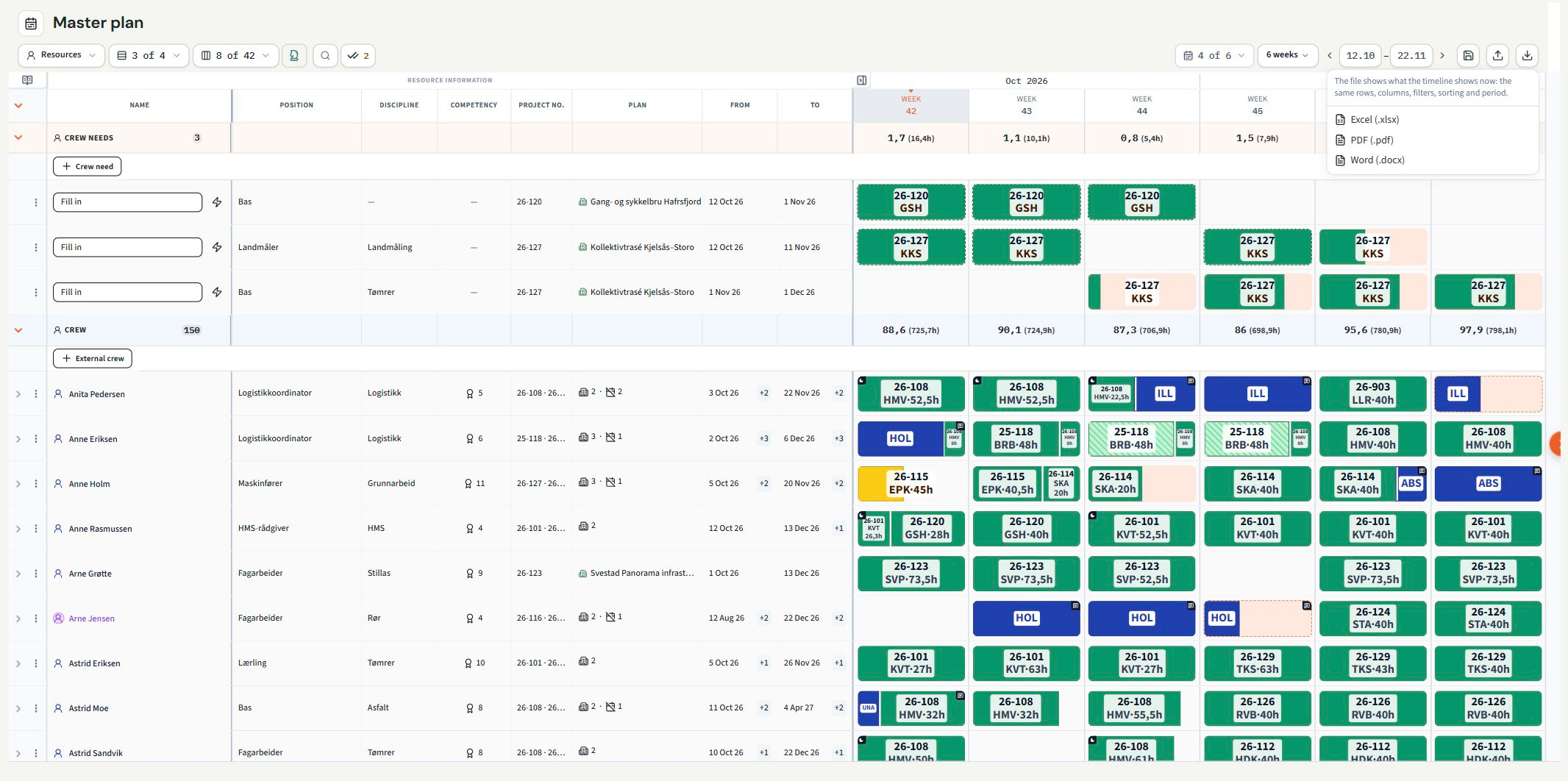
07Share plans and communicateExport, email and SMS in your workflow.
- Open the overview and select the period, columns and filters. Choose Export in the toolbar.
- Choose a format offered by that view, such as Excel or PDF. Check the file before sharing.
- Open Communication for email and SMS. Select recipients and review the message and attachments before sending.
 View full size ↗
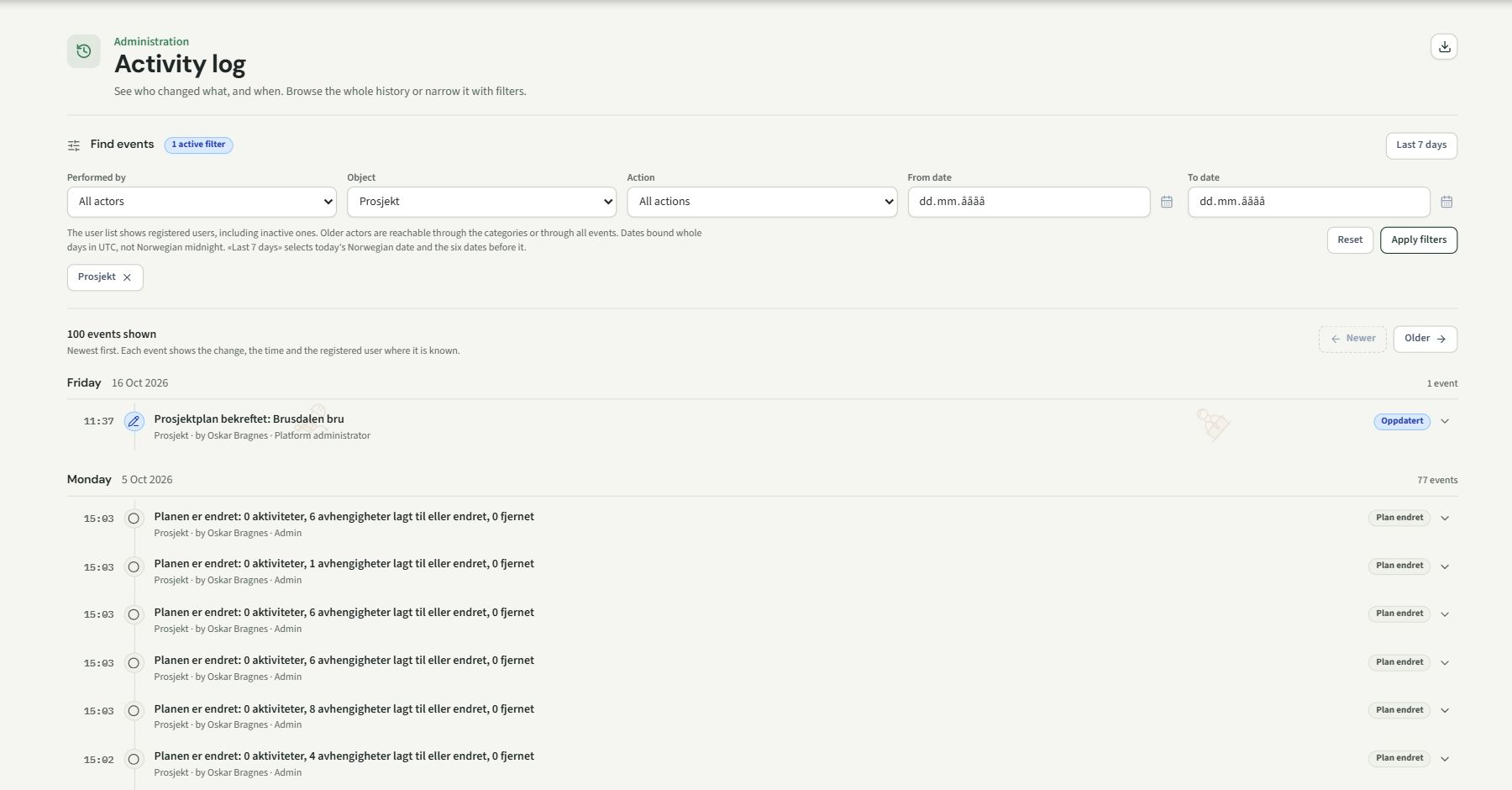
08Follow changes and versionsUnderstand what changed and when.
- Use Save version in Master plan to preserve a reference point. Select a saved version to inspect it.
- Open History or Activity log from the user menu to find recorded events and changes.
- Use the notification bell for updates and open an event for context. Employees follow their own updates in My changes.
 View full size ↗
09Build a reliable data foundationResources, projects, competencies and access.
- Under Content, maintain resources, projects, needs, teams and organisational units.
- Enter competencies, requirements, working schedules and prices used by planning and analysis. Link employees to the correct accounts.
- Agree roles and access. Explore the integrations page and API/MCP overview to understand data exchange with other systems.
 View full size ↗
No guides match your search.
Try a shorter search or show all topics.
Short videos. Practical tasks.
Four planning levels in one minute. See My plan on mobile, operational project management, tactical resource planning, AI and strategic portfolio effects.
My plan on mobile
See your work, changes, skills and profile directly on mobile.
Operational project plan
Manage one project with activities, teams, milestones and dependencies.
Tactical master plan
See all resources across all projects in the short to medium term. Balance demand, skills and capacity.
AI in the workflow
Ask the assistant about the plan. Review suggestions and approve supported changes.
The strategic portfolio
See the entire portfolio in the medium to long term. Assess utilisation, improvement suggestions, bids and estimated financial effects.
Share the foundation
Share selected planning content by exporting to Excel, PDF or Word.
Real recordings and animated product screenshots from the fictional demo. No customer information.
Common questions
Why is My plan empty?
Check the date and whether your account is linked to the correct employee resource. An administrator can check the link. An account alone does not create a personal resource plan.
Why is a menu or project missing?
Check the selected organisation and your role. Access to views, projects and changes depends on your permissions.
Why do my figures differ from a colleague’s?
Compare the period, filters, grouping and any saved version. Strategic estimates also depend on the criteria and available data.
How do I change language?
Open the user menu at the top right and choose Language. On the website, use the language selector; guides, screenshots and films follow your selection.
We’ll help you move forward.
Tell us what you are trying to do, which plan you are using and what happens. Do not include passwords or sensitive personal information.